Time is a surprisingly complex topic in video games. Objects that animate typically need to do so in a way that is not influenced by the frame rate of the game, and thus speeds and velocities need to be scaled by time. Pausing a video game typically requires time to stop ticking, but for rendering and other logic to continue. In fact, it’s common for video games to stop time for some parts of the scene (i.e. the game parts) and keep it running for other parts (e.g. the pause UI, which expected to continue to animate or react to player input). And then there are all manner of slow motion effects that require manipulation of the clock.
Time in Story Machine is handled in two main ways:
- The time, deltaTime, and realTime system variables, which track the progression of time, and
- The Clocks system, which allows individual objects or sub-trees of objects to run at different speeds.
Time System Variables
Story Machine exposes three time-related system variables to all objects:
-
time, the time in seconds since the game started running. This time may be scaled (see below). -
deltaTime, the time it took to render the last frame. This value is often used to compute frame rate independent animation (e.g.positionX += velocityX * deltaTime). -
realTime, just like theetimevariable, this stores the time in seconds since the beginning of the game, but it is not affected by time scale modifications.
These variables can be used throughout Story Machine actions and components. For example, you could use a Set Variable action to set a variable to sin(time) and get a sine wave. Like all other variables, they can also be plugged into fields in object transforms or components. Setting an object’s X position to the time field, for example, will cause it to move right across the screen.
Clocks
In Story Machine, all time is managed by a Clock. There is a default clock which is always available and runs at normal speed, but you can define alternative clocks with different properties as well.
Clocks can be defined in the Project Settings window.
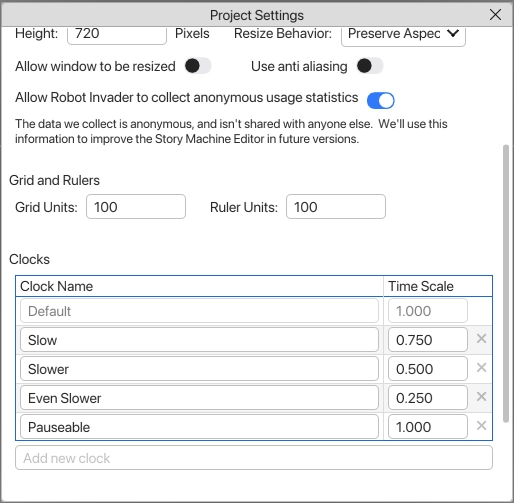
The Default clock always has a scale of 1.0, meaning it always runs in real time and cannot be changed. However, other clocks with different time scales can also be defined. In this example, Slow, Slower, and Even Slower are clocks that run at 75%, 50%, and 25% speed respectively.
Once a clock is defined it can be assigned to an object using the Time Scale component. When a clock is selected via the Time Scale component, all of the other components on that object, as well as all components in objects that are children or grand children of that object, will use that clock’s speed rather than the default. This extends to the System Variables documented above. Actions that reference time will get a scaled version of the actual time that relies on the clock their parent object is using.
Clock speed can be set in the Project Settings, but it can also be changed at runtime using the Set Clock action. All objects using the changed clock will immediately adopt the new time scale specified.
The Clocks system allow you to designate whole sub-trees of the scene that run at different speeds. For example, to implement a character that moves in slow motion while the rest of the game runs at full speed, a clock on the top-level object for that character would slow time down just for his sub-tree.
Implementing Pausing
To pause a game in Story Machine, put all the objects that should be paused under a single parent end use the Time Scale component to assign those objects to a custom clock. To pause the game, use the Set Clock action to set the time scale of that custom clock to 0.
In the example above, the Pauseable clock is defined for this purpose: objects that use the Pauseable clock will run at normal speed (it starts at a time scale of 1.0, which is real time). But if the Pauseable clock’s time scale is changed to 0, those objects will all stop in their tracks. They’ll continue to process logic and run actions but all time-based animations and mathematical equations will be paused. When the game is ready to resume, the Pauseable clock’s time scale can be set back to 1.0.
This approach allows you to separate elements of the scene that shouldn’t pause (such as the pause menu UI, which probably still needs to animate at full speed) from the parts that should (e.g. the game itself).